Tampilkan postingan dengan label PC Tips. Tampilkan semua postingan

Tips To Shopping For computer printers

Author: RaN // Category: ,
Consider the printer’s DPI (dots per inch) capability, which is the resolution at which it can print photos and documents. The higher DPI (dots per inch) you have, the better quality you will have in either text or photo printouts.

-Consider the cost of ink. When purchasing a new printer, take a moment to compare prices among ink cartridges and make sure that you can afford frequent ink purchases if you plan to do a lot of printing.

-Take a look at the connector and make sure it’s compatible with your system. Most new printers connect via a USB port. Older ones connect using a parallel port, which is not commonly found on new PCs.

-When looking at the cost of ink, also look at the number of pages a single ink cartridge can print. If the page count is high, the cost of the ink may be reasonable. If the page count is low compared to other similar ink cartridges, you may want to select another printer that offers a better performing ink cartridge.

-Check out the warranty. All new electronics, including printers, carry a manufacturer’s warranty. Depending on the company, warranties can be valid anywhere from 90 days to 1 year and may include defects in material and/or workmanship. If your printer fails to perform correctly and develops a problem while under warranty, you will be glad that you saved the paperwork. Always keep the original purchase receipt and warranty information relating to your purchase.

-Buy from a name that you trust. When shopping for any item, it is best to purchase from a manufacturer that you know produces a quality product and especially when it comes to a substantial electronics purchase.

-Consider the size and weight of the printer.

This is important for both cleaning general convenience. If your desk is small, you may not want a bulky printer taking up most of your space. At the same time, you may not want to lift on a heavy piece of equipment when cleaning your work station. A lightweight and compact style may be better, especially if your office is at home.

-Make sure that your computer is capable of running the printer software, which means it may require a specific processor type and speed, available memory, etc.

-Make sure that the printer you purchase has all of the features and capabilities that you need. For instance, if your primary goal is to produce realistic photos and you also plan to print written documents from time to time, consider the purchase of a photo printer. You can change the quality of printing to suit either images or documents or even a combination of both if you plan to print photo newsletters.

-Make sure that the printer has all of the necessary connector cables and that you will not need to buy any additional hardware prior to finalizing your purchase. If you need to purchase a USB cable, which is often the case with many new printers, you will want to purchase it at the same time to save on shipping if ordering online or having to make a special trip if you purchase locally.


Read more ...

Criteria For Choosing laptop memory

Author: RaN // Category: ,
Every now so often, laptop users have the need to upgrade their laptop memory, it is better to opt for the higher memory capacity because you'll be saving yourself the difficulty of upgrades, not to say the costs, later on. Make Sure You Have All the Memory Capacity You Will Need Because the higher the capacity and the speedier the rate of the hard disk, the better.
In conclusion, just use some common sense before you buy your
laptop memory. Use the Internet to check out and comparison shop for
the best (and cheap)laptop memory. and you will ultimately find your perfect laptop.
Read more ...

Cleaning the LCD screen

Author: RaN // Category:
Cleaning an LCD screen is easy,But, make sure you following this tips:

1.Turn off your computer or display.
2.NEVER! using alcohol or ammonia based cleaners on your LCD screen. Because This could damage the LCD screen. Dampen a clean, soft, lint-free cloth with water only.
3.Never squirt any cleaner directly on a LCD screen.
4.LCD screens are not made for constant touching,so be careful when cleaning because you don't want to damage the pixels within the screen.Be sure to wring out all the excess moisture.
5. If you got some extra money, i recommend using a LCD cleanser that can be purchased at any electronics store.
Read more ...

Hibernate your PC

Author: RaN // Category: ,
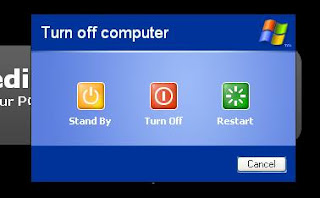
Modern PC are designed to go into stand By mode when they're under power (battery/UPS). If the computer not see the activity(no mouse movements/no typing), its going to sleep to safe his power. the delay time after which PC automatically enters Stand By mode is set in the Power Options Properties dialog box, obtained through the Control Panel. Unlike Stand By mode, you can leave your PC in a hibernated state for as long as you wish. A big advantage of hibernation is that it’s quicker to start the computer than a regular start up.

Here’s step by step to hibernate your PC:

A. Make sure save your work, you didn't need to quit any applications. just save your work.
B.Hit start button
C.You will see The Turn Off Computer box thing appears
D.Press the Shift key.
Now you can see the magic. The Stand By button changes to read Hibernate. Keep that Shift key down.

E.Its time to Click the Hibernate button.
Now your PC turns itself off.
Now, how If your laptop seems to be unable to enter Hibernation mode after you hold the shift button? its ok. no need to panic. we need to change some setting:
A. From the Start menu, choose the Control Panel.
B. And Open the Power Options icon.
C. Look and click on the Hibernation tab.
If You can't find the Hibernation tab, then there’s your problem, The PC is not capable of hibernating.

If not, Just make Enable hibernation mark. (Picture)

Note: Hibernation mode requires hard drive space! If your hard drive space runs low, it’s possible that Hibernation mode won’t work.

Read more ...

Capture Screenshots with easy

Author: RaN // Category:


Usually, when we want to capture an image directly from our computer we use a standart way:Print Screen button. then we have to open an image editor application, paste the picture and then save it. Mmh, what a boring methode.
Let me introduce you with this Freeware, Gadwin's free PrintScreen. Gadwin PrintScreen allows much more flexibility with that Print Screen button at the top of your keyboard.

When you hit print screen button, you can choose to save the screen directly to a specific folder. This progie will sit on sys tray.

You can download this Freeware Here
Size: 3 Mb
Read more ...

Software:Blaze Media Pro

Author: RaN // Category:

Sometimes when we want to watch your favorite movie or just want to listen a song, you get mad because your media player doesn't support some formats. But there is some solutions for this. you can use Blaze Media Pro,This software supports almost all kinds of formats and allow us to join audio, edit tags and more.
This software supports CDDB and offers you many comprehensive video-editing operations (delete frame, crop, flip, trim resize, rotate, mirror, delete selection text overlay, adjust audio volume). There are also over color adjustment operations and 29 effects, which allow powerful video enhancement and alternation.
Download Blaze Media Pro, install and run it .
Read more ...

Backup before Upgrading PC

Author: RaN // Category:


When you make a decision to upgrade your PC, The most crucial step is back up all your (in)important data. Its easy to do. you can transfer your data to another media such disc, portable media etc.
Simply drag and drop your files.
after you done. take a look for hardware compability;
a.RAM
b.Mainboard
c.Processor
d.Driver
e.VGA/graphics card
With early diagnose, you will speed up the process to avoid some problem when something bad happen.
Read more ...