Today we will try to installing the Windows Server® 2008 operating system.
Before we do this, there is System requirements did you need to know.
Processor
Processor performance depends not only on the clock frequency of the processor, but also on the number of processor cores and the size of the processor cache. The following are the processor requirements for this product:
• Minimum: 1.4 GHz (for x64 processors) And 1 GHz (for x86 processors)
• Recommended: 2 GHz or faster
Disk space
• Minimum: 10 GB
• Recommended: 80 GB or more
RAM
The following are the RAM requirements for this process:
• Minimum: 512 MB
• Recommended: 2 GB or more
• Maximum (32-bit systems): 4 GB (for Windows Server 2008 Standard) or 64 GB (for Windows Server 2008 Enterprise or Windows Server 2008 Datacenter)
• Maximum (64-bit systems): 32 GB (for Windows Server 2008 Standard) or 2 TB (for Windows Server 2008 Enterprise, Windows Server 2008 Datacenter)
The upgrade process from Windows Server 2003 to Windows Server 2008 requires free disk space for the new operating system image, for the Setup process, and for any installed server roles.
For the domain controller role, the volume or volumes hosting the following resources also have specific free disk space requirements:
• Application data (%AppData%)
• Program files (%ProgramFiles%)
• Users’ data (%SystemDrive%\Documents and Settings)
• Windows® directory (%WinDir%)
The free space on the %WinDir% volume must be equal or greater than the current size of the resources listed above and their subordinate folders when they are located on the %WinDir% volume. By default, dcpromo places the Active Directory® database and log files under %Windir%—in this case, their size would be included in the free disk space requirements for the %Windir% folder.
However, if the Active Directory database is hosted outside of any of the folders above, then the hosting volume or volumes must only contain additional free space equal to at least 10% of the current database size or 250 MB, whichever is greater. Finally, the free space on the volume that hosts the log files must be at least 50 MB.
A default installation of the Active Directory directory service in Windows Server 2003 has the Active Directory database and log files under %WinDir%\NTDS. With this configuration, the NTDS.DIT database file and all the log files are temporarily copied over to the quarantine location and then copied back to their original location. This is why additional free space is required for those resources. However, the SYSVOL directory, which is also under %WinDir% (%WinDir%\SYSVOL), is moved and not copied. Therefore, it does not require any additional free space.
After the upgrade, the space that was reserved for the copied resources will be returned to the file system.
Before you start Setup
Before you install Windows Server 2008, follow the steps in this section to prepare for the installation.
• Check for application compatibility. To help with this, you can use the Microsoft Application Compatibility Toolkit. Although it is primarily used to provide compatibility information about network applications, you can also use it to prepare for Windows Server 2008.
• Disconnect UPS devices. If you have an uninterruptible power supply (UPS) connected to your destination computer, disconnect the serial cable before running Setup. Setup automatically attempts to detect devices that are connected to serial ports, and UPS equipment can cause issues with the detection process.
• Back up your servers. Your backup should include all data and configuration information that is necessary for the computer to function. It is important to perform a backup of configuration information for servers, especially those that provide network infrastructure, such as Dynamic Host Configuration Protocol (DHCP) servers. When you perform the backup, be sure to include the boot and system partitions and the system state data. Another way to back up configuration information is to create a backup set for Automated System Recovery.
• Disable your virus protection software. Virus protection software can interfere with installation. For example, it can make installation much slower by scanning every file that is copied locally to your computer.
• Run the Windows Memory Diagnostic tool. You should run this tool to test the random access memory (RAM) on your computer.
• Provide mass storage drivers. If your manufacturer has supplied a separate driver file, save the file to a floppy disk, CD, DVD, or universal serial bus (USB) flash drive in either the root directory of the media or in one of the following folders: amd64 for x64-based computers, i386 for 32-bit computers, or ia64 for Itanium-based computers. To provide the driver during Setup, on the disk selection page, click Load Driver (or press F6). You can browse to locate the driver or have Setup search the media.
• Be aware that Windows Firewall is on by default. Server applications that must receive unsolicited inbound connections will fail until you create inbound firewall rules to allow them. Check with your application vendor to determine which ports and protocols are necessary for the application to run correctly.
• Prepare your Active Directory environment with Windows Server 2008 updates. Before you can add a domain controller that is running Windows Server 2008 to an Active Directory environment that is running Windows 2000 or Windows Server 2003 operating systems, you will need to update the environment.
Note:
Even if you have followed these steps to install previous releases, you must repeat these procedures prior to installing this release of Windows Server 2008.
To do this, you need to update the Active Directory environment by using the following procedure. If you are performing an unattended installation, perform this step before you install the operating system. Otherwise, you will need to do this after you run Setup and before you install Active Directory Domain Services.
To prepare a forest
1. Log on to the schema master as a member of the Enterprise Admins, Schema Admins, or Domain Admins group.
2. Copy the contents of the \sources\adprep folder from the Windows Server 2008 installation DVD to the schema master role holder.
3. Open a Command Prompt window, navigate to the Adprep folder, and run adprep /forestprep.
4. If you plan to install a read-only domain controller (RODC), run adprep /rodcprep.
5. Allow the operation to complete and the changes to replicate before following the next procedure.
To prepare a domain
1. Log on to the infrastructure master as a member of the Domain Admins group.
2. Copy the contents of the \sources\adprep folder from the installation DVD to the infrastructure master role holder.
3. Open a Command Prompt window, navigate to the Adprep folder, and run adprep /domainprep /gpprep.
4. Allow the operation to complete and the changes to replicate.
After completing these steps, you can add domain controllers that are running Windows Server 2008 to the domains you have prepared. Among its tasks, the adprep command extends the schema, updates default security descriptors of selected objects, and adds new directory objects as required by some applications.
Installing a Server Core installation
When installing a Server Core installation of Windows Server 2008 on an x86-based or x64-based server, you will be prompted during Setup to install one of the following options. You can use the following explanations to determine which one to choose:
• Windows Server 2008 VERSION (Full Installation). This option installs the complete installation of Windows Server 2008. This installation includes the entire user interface, and it supports all of the server roles.
• Windows Server 2008 VERSION (Server Core Installation). This option installs a minimal server installation of Windows Server 2008, which you can use to run supported server roles.
When you select this option, Setup will install only the files that are required for these server roles to function. For example, the traditional Windows interface will not be installed—you configure and manage the server locally from the command prompt. You should consider this option because it will reduce the servicing and management requirements and the attack surface of your server.
Installing multiple operating systems on the same computer
We recommend that you install Windows Server 2008 on a partition separate from your previous operating system. By doing this, you will still have access to the other operating system. For best results, we recommend that you start Setup from within Windows (rather than booting from the product DVD), and then perform a custom (clean) installation onto a separate partition.
For more info you can visit breachsoftware.biz
Read more ...
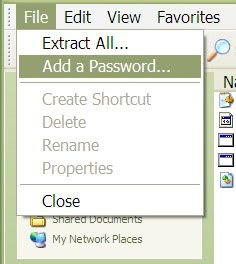 Next step is Type and confirm your password.